Friday, 22 July 2011

Requirements in Microsoft Exchange Server 2007/2010 for inbound/outbound Email Flow (Routing)

inbound (Receive) mail flow?

1)   - The sending SMTP server queries Domain Name System (DNS) to locate the mail exchanger (MX) resource record of the recipient's SMTP mail server. This MX record resolves to a corresponding host (A) record that resolves the IP address of the recipient's SMTP mail server.

2)   - The sending SMTP server initiates a conversation on the recipient's SMTP server (using port 25). On an Exchange Server gateway, the recipient's SMTP server is the SMTP virtual server on the Exchange server that is configured to accept inbound mail.

3)   - If the message is destined for a recipient of its SMTP mail domain, the SMTP server accepts the inbound message, as defined by recipient policies.

4)   - When the message is accepted, the message is persisted in the \Queue folder on the Exchange server. The SMTP virtual server submits the message to the Advanced Queuing Engine, which then submits the message to the message categorizer.

5)   - The message categorizer validates the recipients of the message, checks for proper recipient attributes, applies limits and restrictions, flags the message for local delivery, and then returns the message to the Advanced Queuing Engine.

6)   - The Advanced Queuing Engine submits the message to the Local Delivery queue.

7)   - The Exchange store receives the message from the Local Delivery queue.

8)   - Mail messages are delivered to the client (for example Outlook, Outlook Express, or Outlook Web Access).


Outbound mail flows through an Exchange Server deployment in the following manner:

1)      Mail messages are sent from a client (Microsoft Outlook, Outlook Express, or Outlook Web Access, for example) and are submitted to the local Exchange store.

2)      The Exchange store submits the message to the Advanced Queuing Engine.

3)      The Advanced Queuing Engine submits the message to the message categorizer.

4)      The message categorizer validates the recipients of the message, checks for proper recipient attributes, applies limits and restrictions, flags the message for local or remote delivery, and then returns the message to the Advanced Queuing Engine.

5)      If for local delivery, the Advanced Queuing Engine submits the message to the Local Delivery queue, and the Exchange store receives the message from the Local Delivery queue.

6)      If for remote delivery, the Advanced Queuing Engine submits the message to the Routing Engine. The Routing Engine determines the most efficient route for mail delivery, returns the message to the Advanced Queuing Engine, and, in turn, submits the messages for remote delivery. The messages are then sent via SMTP to a remote SMTP host or to the Internet.

* External DNS Queries work?

When a DNS client needs to resolve the name of a server, it queries the DNS servers. Each query that the client sends essentially asks the DNS server to provide the information. The client specifies the query type, which can either indicate a resource record by type or a specialized type of query operation. For example, to find SMTP mail servers from the Internet, specify the query type MX (mail exchanger resource record).

For example, the name that is specified could be an external domain, such as example.microsoft.com., and the query type that is specified to look for could be an MX record by that name. Think of a DNS query as a client asking a server a two-part question: First, "Do you have any MX resource records for a domain named 'example.microsoft.com.'?" followed by "If so, can you resolve this MX record to an A (host) record and resolve its IP address?" When the client receives an answer from the server, it reads and interprets the MX record and gets the A record, thereby resolving the computer's IP address.


1.       At a command prompt, type nslookup, and then press ENTER.
2.       Type server <IP address>,where IP address is the IP address of your external DNS server.
3.       Type set q=MX, and then press ENTER.
4.       Type <domain name>, where domain name is the name of your domain, and then press ENTER. The MX record for the domain you entered should be displayed. If the MX record is not displayed, DNS is not configured properly.

The example below shows how MX records appear for the fictitious domain, example.com.
C:\> nslookup
Default Server:  pdc.edu.pk
Address:  192.168.3.10
> server 111.68.97.17
Default Server:  dns1.example.com
Address:  111.68.97.17
> set q=mx
> pdc.edu.pk.
Server:  dns1.pdc.edu.pk
Address:  111.68.97.17
pdc.edu.pk   MX preference = 10, mail exchanger = mail1.pdc.edu.pk
pdc.edu.pk   MX preference = 10, mail exchanger = mail2.pdc.edu.pk
pdc.edu.pk   MX preference = 10, mail exchanger = mail3.pdc.edu.pk
pdc.edu.pk   MX preference = 10, mail exchanger = mail4.pdc.edu.pk
pdc.edu.pk   MX preference = 10, mail exchanger = mail5.pdc.edu.pk
mail1.pdc.edu.pk     internet address = 111.68.99.10
mail2.pdc.edu.pk     internet address = 111.68.99.11
mail3.pdc.edu.pk     internet address = 111.68.99.12
mail4.pdc.edu.pk     internet address = 111.68.99.13
mail5.pdc.edu.pk     internet address = 111.68.99.14

In this example, the preconfigured DNS server is behind a proxy server. Therefore, an external or Internet DNS server with a known IP address of 111.68.97.17 was used to perform the query. Next, the query type was set to MX to locate the mail exchangers for example.com. In this example, five SMTP servers are equally balanced, each with its own IP address. However, your domain might only have a single entry, as seen in the following example:

contoso.com   MX preference = 10, mail exchanger = mailbox.pdc.com
1.     mailbox.contoso.com     internet address = 10.57.22.3

Saturday, 24 April 2010

How to set up Samba as a Primary Domain Controller ...

How to set up Samba as a Primary Domain Controller   

A domain controller is a server which groups multiple computers to centralize their authentication system. When you are using a domain controller, you don't login to your computer, but instead login to the domain controller. Every authentication request is handled by the Primary Domain Controller (PDC).
 
Usually you hear about PDC using a Windows based server. In this tutorial, I'll describe how to set up a PDC using Samba, which is based on Linux.
 
There are four main steps for setting up Samba as a PDC:
  • Install Samba
  • Configure /etc/samba/smb.conf
  • Add domain users
  • Register all Windows computers with Samba PDC.

1. Samba Installation

If you are using a Debian based Linux, run the following command on the terminal window to install Samba:
$ sudo apt-get install samba
$ sudo apt-get install samba-common
$ sudo apt-get install samba-common-bin
 
If you are using a Red Hat based Linux, you may use rpm or yum package manager to install Samba.

2. Samba Configuration

The main configuration of Samba server is found in /etc/samba/smb.conf. For a PDC server, there are three part of the file which you need to configure: global, netlogon, and homes.
Before you start modifying the configuration file, I suggest you back up the existing Samba configuration file.
$ sudo cp /etc/samba/smb.conf /etc/samba/smb.conf.old

Configuring [global] parameters

[global]
 workgroup = sambadomain 
 netbios name = sambapdc 
 server string = Samba PDC 
 domain master = yes 
 preferred master = yes 
 domain logons = yes 
 add machine script = /usr/sbin/useradd -N -g machines -c Machine -d /var/lib/samba -s /bin/false %u 
 security = user 
 encrypt passwords = yes 
 wins support = yes 
 name resolve order = wins lmhosts hosts bcast 

 logon path = \\%N\%U\profile 
 logon drive = H: 
 logon home = \\%N\%U
Change the names of the workgroup and the PDC according to your environment, so that they correspond to the actual values in your network. If you have another Wins server on your network, remove "wins support = yes", because having more than one causes a problem. "wins support = yes" means Samba acting as a Netbios server.

Creating LMHOSTS file

Don't forget to register your domain IP address to the LMHOSTS file. The LMHOSTS file is a mapper between the IP address of the domain controller and Netbios name. When you add a Windows computer to the SAMBADOMAIN, Windows tries to find the PDC's IP address. If Windows fails to find the PDC's IP address, then you won't be able to register a computer with the PDC.
The LMHOSTS file should be created and placed in /etc/samba/lmhosts. The content of LMHOSTS file is similar to /etc/resolv.conf file, except that you need to register the Netbios name instead of the host name. For example, if your PDC has an IP address 10.10.101.1 with sambadomain as workgroup name, and sambapdc as the Netbios name, the content of the lmhosts file should look like the following:
10.10.101.1 sambadomain
10.10.101.1 sambapdc
After creating /etc/samba/lmhosts, re-run the nmbd daemon as follows:
$ sudo nmbd -H /etc/samba/lmhosts -D

Configuring [netlogon] parameters

[netlogon]
 path = /var/lib/samba/netlogon 
 browseable = no 
 read only = no 
 create mask = 0700 
 directory mask = 0700 
 valid users = %S 

/var/lib/samba/netlogon is a startup directory for PDC logon. When users login to the Samba PDC, a script called netlogon.bat in the directory will be executed.

$ sudo mkdir -m 0755 /var/lib/samba/netlogon
 
For example, if you want to automatically mount a network drive from the PDC, Create the following netlogon.bat script in /var/lib/samba/netlogon
1
2
## Samba Logon Script
net use x: \\sambapdc\share

Configuring [homes] parameters

This is a configuration file for PDC user's home directory.
[homes]
 valid users = %S 
 guest ok = yes 
    read only = yes 

Testing the configuration file

After saving all configuration files, test your configuration with the following command:
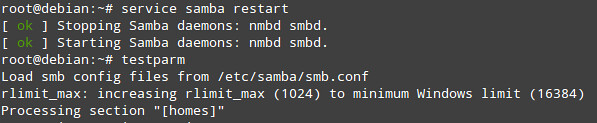
$ sudo testparm
If there is any syntax error detected, fix it and restart Samba.

3. Adding Domain Users

Adding admin user and group for the PDC

In Linux, admin user is the root user. So you need to run the following command to add the root user as the Samba admin:
$ sudo smbpasswd root
You should not use the same password as the Linux root user.

Create a machines group

The next step is to create a group called "machines".
$ sudo groupadd -g machines
Samba will automatically add users to this group, as long as you configure "add machine script" correctly in [global] section in /etc/samba/smb.conf.

Create a Linux Account for PDC login

You need to create a user on PDC for domain login. In this example, I will create an account that disables Linux login. So every access to the PDC must be done via Samba.
For example, creating user "arsalan":
$ sudo smbpasswd -a arsalan
Enter the same password twice.
You need to activate the user with the following command:
$ sudo smbpasswd -e dan
Grant user "arsalan" to login to the PDC:
$ sudo net rpc rights grant "SAMBADC\dan" SeMachineAccountPrivilege SePrintOperatorPrivilege SeAddUsersPrivilege SeDiskOperatorPrivilege SeRemoteShutdownPrivilege
$ sudo net groupmap add ntgroup="Administrator" unixgroup=root rid=512 type=d

4. Register Windows Computers with the Samba PDC

Under Windows computer properties, change the domain name to sambadomain. Reboot your Windows PC, and try to login with SAMBADC/arsalan. If you successfully login, then your Samba PDC is ready.

Referred from open source article

Saturday, 10 April 2010

How to set up a Samba file server to use with Windows clients

According to the Samba project web site, Samba is an open source/free software suite that provides seamless file and print services to SMB/CIFS clients. Unlike other implementations of the SMB/CIFS networking protocol (such as LM Server for HP-UX, LAN Server for OS/2, or VisionFS), Samba (along with its source code) is freely available (at no cost to the end user), and allows for interoperability between Linux/Unix servers and Windows/Unix/Linux clients.
For these reasons, Samba is the preferred solution for a file server in networks where different operating systems (other than Linux) coexist - the most common setup being the case of multiple Microsoft Windows clients accessing a Linux server where Samba is installed, which is the situation we are going to deal with in this article.
 
Please note that on the other hand, if our network consists of only Unix-based clients (such as Linux, AIX, or Solaris, to name a few examples), we can consider using NFS (although Samba is still an option in this case), which has greater reported speeds.
 

Installing Samba in Debian and CentOS/Redhat

Before we proceed with the installation, we can use our operating system's package management system to look for information about Samba:

On Debian:
# aptitude show samba
 
On CentOS:
# yum info samba
 
In the following screenshot we can see the output of 'aptitude show samba' ('yum info samba' yields similar results):


Now let's install Samba (the screenshot below corresponds to the installation on a Debian 7 [Wheezy] server):

On Debian:
# aptitude install samba
 
On CentOS:
# yum install samba 
 

Adding Users to Samba

For versions earlier than 4.x, a local Unix account is required for adding users to Samba:
# adduser -s /dev/null -m -d /home/<username> <username>


# SAMBA SHARE
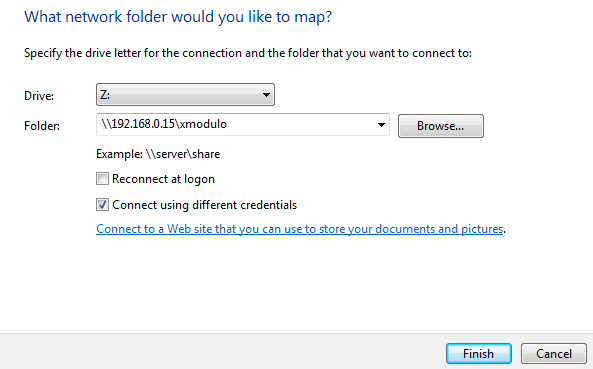
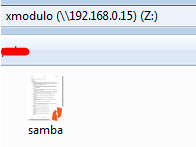
[xmodulo]
path = /home/xmodulo
available = yes
valid users = xmodulo
read only = no
browseable = yes
public = yes
writeable = yes
 

  , Linux Sys Administrator 
He is a GNU/Linux sysadmin and web developer from Villa Mercedes, San Luis, Argentina. He works for a worldwide leading consumer product company and takes great pleasure in using FOSS tools to increase productivity in all areas of his daily work.

Saturday, 7 November 2009

Advanced SSH security tips and tricks

The SSH server configuration file is located in /etc/ssh/sshd_conf. You need to restart the SSH service after every change you make to that file in order for changes to take effect.

Change SSH listening port
By default, SSH listens for connections on port 22. Attackers use port scanner software to see whether hosts are running an SSH service. It's wise to change the SSH port to a number higher than 1024 because most port scanners (including nmap) by default don't scan high ports.
Open the /etc/ssh/sshd_config file and look for the line that says:
Port 22
Change the port number and restart the SSH service:
/etc/init.d/ssh restart

Allow only SSH protocol 2
There are two versions of the SSH protocol. Using SSH protocol 2 only is much more secure; SSH protocol 1 is subject to security issues including man-in-the-middle and insertion attacks. Edit /etc/ssh/sshd_config and look for the line that says:
Protocol 2,1
Change the line so it says only protocol 2.

Allow only specific users to log in via SSH
You should not permit root logins via SSH, because this is a big and unnecessary security risk. If an attacker gains root login for your system, he can do more damage than if he gains normal user login. Configure SSH server so that root user is not allowed to log in. Find the line that says:
PermitRootLogin yes

Change yes to no and restart the service. You can then log in with any other defined user and switch to user root if you want to become a superuser.

It is wise to create a dummy local user with absolutely no rights on the system and use that user to login into SSH. That way no harm can be done if the user account is compromised. When creating this user, make sure it's in the wheel group, so that you can switch to superuser.
If you would like to have a list of users who are the only ones able to log in via SSH, you can specify them in the sshd_config file. For example, let's say I want to allow users anze, dasa, and kimy to log in via SSH. At the end of sshd_config file I would add a line like this:
AllowUsers anze dasa kimy

Create a custom SSH banner
If you would like any user who connects to your SSH service to see a specific message, you can create a custom SSH banner. Simply create a text file (in my example in /etc/ssh-banner.txt) and put any kind of text message in it; for example:

*****************************************************************
*This is a private SSH service. You are not supposed to be here.*
*Please leave immediately. *
*****************************************************************

When done editing, save the file. In the sshd_conf file, find a line that says:
#Banner /etc/issue.net

Uncomment the line and change the path to your custom SSH banner text file.

Using DSA public key authentication

Instead of using login names and passwords for SSH authentication, you can use DSA public keys for authentication. Note that you can have both login names and DSA public key authentication enabled at the same time. Having a DSA public keys authentication enabled makes your system bulletproof against dictionary attacks, because you don't need a login name and password to log in into SSH service. Instead, you need a pair of DSA keys -- one public and one private. You keep the private key on your machine and copy the public key to the server. When you want to log in to an SSH session, the server checks the keys, and if they match, you are dropped into the shell. If the keys don't match, you are disconnected.

In this example the private machine (from which I will connect to the server) is station1 and the server machine is server1. On both machines I have the same home folder; this won't work if the home folders are different on client and server machine. First you need to create a pair of keys on your private machine with the command ~$ ssh-keygen -t dsa. You'll be prompted for a pass-phrase for your private key, but you can leave it blank because this is not a recommended method. A key pair is generated: your private key is located in ~/.ssh/id_dsa and your public key is located in .ssh/id_dsa.pub.

Next, copy the contents of ~/.ssh/id_dsa.pub to server1 into the ~/.ssh/authorized_keys file. The content of ~/.ssh/id_dsa.pub file should look something like this:
~$ cat .ssh/id_dsa.pub

 ssh-dss AAAAB3NzaC1kc3MAAACBAM7K7vkK5C90RsvOhiHDUROvYbNgr7YEqtrdfFCUVwMWcJYDusNG
AIC0oZkBWLnmDu+y6ZOjNPOTtPnpEX0kRoH79maX8NZbBD4aUV91lbG7z604ZTdrLZVSFhCI/Fm4yROH
Ge0FO7FV4lGCUIlqa55+QP9Vvco7qyBdIpDuNV0LAAAAFQC/9ILjqII7nM7aKxIBPDrQwKNyPQAAAIEA
q+OJC8+OYIOeXcW8qcB6LDIBXJV0UT0rrUtFVo1BN39cAWz5puFe7eplmr6t7Ljl7JdkfEA5De0k3WDs
9/rD1tJ6UfqSRc2qPzbn0p0j89LPIjdMMSISQqaKO4m2fO2VJcgCWvsghIoD0AMRC7ngIe6btaNIhBbq
ri10RGL5gh4AAACAJj1/rV7iktOYuVyqV3BAz3JHoaf+H/dUDtX+wuTuJpl+tfDf61rbWOqrARuHFRF0
Tu/Rx4oOZzadLQovafqrDnU/No0Zge+WVXdd4ol1YmUlRkqp8vc20ws5mLVP34fST1amc0YNeBp28EQi
0xPEFUD0IXzZtXtHVLziA1/NuzY= 


If the file ~/.ssh/authorized_keys already exists, append the contents of the file ~/.ssh/id_dsa.pub to the file ~/.ssh/authorized_keys on server1. The only thing left to do is to set the correct permissions of ~/.ssh/authorized_keys file on server1:

~$ chmod 600 ~/.ssh/authorized_keys

Now, configure the sshd_conf file to use the DSA keys authentication. Make sure you have the following three lines uncommented:

RSAAuthentication yes
PubkeyAuthentication yes
AuthorizedKeysFile %h/.ssh/authorized_keys


Restart the service. If you configured everything correctly, you should now be able to SSH to your server and fall directly into your home folder without any interaction.
If you would like to use DSA authentication only, make sure you uncomment and change the

PasswordAuthentication line in sshd_config from yes to no:
PasswordAuthentication no

If anyone tries to connect to your SSH service and doesn't have a public key on the server, he will be rejected without even seeing the login prompt with this error:
Permission denied (publickey).

Using TCP wrappers to allow only specific hosts to connect
This approach is useful if you would like to allow only specific hosts on a network to be able to connect to your SSH service, but you don't want to use or mess up your iptables configuration. Instead, you can use TCP wrappers; in this case the sshd TCP wrapper. I will make a rule to allow only hosts on my local subnet 192.168.1.0/24 and remote host 193.180.177.13 to connect to my SSH service.

By default TCP wrappers first look in the /etc/hosts.deny file to see what hosts are denied for what service. Next, TCP wrapper looks in /etc/hosts.allow file to see if there are any rules that would allow hosts to connect to a specific service. I'll create a rule like this in /etc/hosts.deny:
sshd: ALL

This means that by default all hosts are forbidden to access the SSH service. This needs to be here, otherwise all hosts would have access to the SSH service, since TCP wrappers first looks into hosts.deny file and if there is no rule regarding blocking SSH service, any host can connect.
Next, create a rule in /etc/hosts.allow to allow only specific hosts (as defined earlier) to use the SSH service:
sshd: 192.168.1 193.180.177.13

Now only hosts from the 192.168.1.0/24 network and the 193.180.177.13 host can access the SSH service. All other hosts are disconnected before they even get to the login prompt, and receive an error like this:

ssh_exchange_identification: Connection closed by remote host

Using iptables to allow only specific hosts to connect
An alternative to TCP wrappers (although you can use both at the same time) is limiting SSH access with iptables. Here's a simple example of how you can allow only a specific host to connect to your SSH service:

~# iptables -A INPUT -p tcp -m state --state NEW --source 193.180.177.13 --dport 22 -j ACCEPT

And make sure no one else has access to SSH service:

~# iptables -A INPUT -p tcp --dport 22 -j DROP
Save your new rules and you're all done.

SSH time-lock tricks

You can also use different iptables parameters to limit connections to the SSH service for specific time periods. You can use the /second, /minute, /hour, or /day switch in any of the following examples.

In the first example, if a user enters the wrong password, access to the SSH service is blocked for one minute, and the user gets only one login try per minute from that moment on:

~# iptables -A INPUT -p tcp -m state --syn --state NEW --dport 22 -m limit --limit 1/minute --limit-burst 1 -j ACCEPT
~# iptables -A INPUT -p tcp -m state --syn --state NEW --dport 22 -j DROP


In a second example, iptables are set to allow only host 193.180.177.13 to connect to the SSH service. After three failed login tries, iptables allows the host only one login try per minute:

~# iptables -A INPUT -p tcp -s 193.180.177.13 -m state --syn --state NEW --dport 22 -m limit --limit 1/minute --limit-burst 1 -j ACCEPT
~# iptables -A INPUT -p tcp -s 193.180.177.13 -m state --syn --state NEW --dport 22 -j DROP


Conclusion

These features are not hard to configure, but they are very powerful techniques for securing your SSH
service. It's a small price to pay for a good night's sleep.

Sunday, 8 February 2009

What CLI tools you must know as a Linux system admins

What CLI tools you must know as a Linux system admin

System administrators (sysadmins) are responsible for day-to-day operations of production systems and services. One of the critical roles of sysadmins is to ensure that operational services are available round the clock. For that, they have to carefully plan backup policies, disaster management strategies, scheduled maintenance, security audits, etc. Like every other discipline, sysadmins have their tools of trade. Utilizing proper tools in the right case at the right time can help maintain the health of operating systems with minimal service interruptions and maximum uptime.
 
 
This blog post will present some of the most popular and useful CLI tools recommended for sysadmins in their day to day activities. If you would like to recommend any useful tool which is not listed here, don't forget to share it in the comment section.

Network Tools

1. ping: Check end-to-end connectivity (RTT delay, jitter, packet loss) of a remote host with ICMP echo/reply. Useful to check system status and reachability.
 
2. hping: Network scanning and testing tool that can generate ICMP/TCP/UDP ping packets. Often used for advanced port scanning, firewall testing, manual path MTU discovery and fragmentation testing.
 
3. traceroute: Discover a layer-3 forwarding path from a local host to a remote destination host with TTL-limited ICMP/UDP/TCP probe packets. Useful to troubleshoot network reachability and routing problems.
 
4. mtr: A variation of traceroute which characterizes per-hop packet loss/jitter with running statistics. Useful to characterize routing path delays.
 
5. netcat/socat: A swiss army knife of TCP/IP networking, allowing to read/write byte streams over TCP/UDP. Useful to troubleshoot firewall policies and service availability.
 
6. dig: DNS troubleshooting tool that can generate forward queries, reverse queries, find authoritative name servers, check CNAME, MX and other DNS records. Can be instructed to query a specific DNS server of your choosing.
 
7. nslookup: Another DNS checking/troubleshooting tool. Works with all DNS queries and records. Can query a particular DNS server.
 
8. dnsyo: A DNS testing tool which checks DNS propagation by performing DNS lookup from over a number of open resolvers located across 1,500 different networks around the world.
 
9. lsof: Show information about files (e.g., regular files, pipes or sockets) which are opened by processes. Useful to monitor processes or users in terms of their open network connections or opened files.
 
10. iftop: A ncurses-based TUI utility that can be used to monitor in real time bandwidth utilization and network connections for individual network interfaces. Useful to keep track of bandwidth hogging applications, users, destinations and ports.
 
11. netstat: A network statistics utility that can show status information and statistics about open network connections (TCP/UDP ports, IP addresses), routing tables, TX/RX traffic and protocols. Useful for network related diagnosis and performance tuning.
 
12. tcpdump: A popular packet sniffer tool based on libpcap packet capture library. Can define packet capturing filters in Berkeley Packet Filters format.
 
13. tshark: Another CLI packet sniffer software with full compatibility with its GUI counterpart, Wireshark. Supports 1,000 protocols and the list is growing. Useful to troubleshoot, analyze and store information on live packets.
 
14. ip: A versatile CLI networking tool which is part of iproute2 package. Used to check and modifying routing tables, network device state, and IP tunneling settings. Useful to view routing tables, add/remove static routes, configure network interfaces, and otherwise troubleshoot routing issues.
 
15. ifup/ifdown: Used to bring up or shut down a particular network interface. Often a preferred alternative to restarting the entire network service.
 
16. autossh: A program which creates an SSH session and automatically restarts the session should it disconnect. Often useful to create a persistent reverse SSH tunnel across restrictive corporate networks.
 
17. iperf: A network testing tool which measures maximum bi-directional throughput between a pair of hosts by injecting customizable TCP/UDP data streams in between.
 
18. elinks/lynx: text-based web browsers for CLI-based server environment.

Security Tools

19. iptables: A user-space CLI tool for configuring Linux kernel firewall. Provides means to create and modify rules for incoming, transit and outgoing packets within Linux kernel space.
 
20. nmap: A popular port scanning and network discovery tool used for security auditing purposes. Useful to find out which hosts are up and running on the local network, and what ports are open on a particular host.
 
21. TCP Wrappers: A host-based network ACL tool that can be used to filter incoming/outgoing reqeuests/replies. Often used alongside iptables as an additional layer of security.
 
22. getfacl/setfacl: View and customize access control lists of files and directories, as extensions to traditional file permissions.
 
23. cryptsetup: Used to create and manage LUKS-encrypted disk partitions.
 
24. lynis: A CLI-based vulnerability scanner tool. Can scan the entire Linux system, and report potential vulnerabilities along with possible solutions.
 
25. maldet: A malware scanner CLI tool which can detect and quarantine potentially malware-infected files. Can run as a background daemon for continuous monitoring.
 
26. rkhunter/chkrootkit: CLI tools which scan for potential rootkits, hidden backdoors and suspected exploits on a local system, and disable them.

Storage Tools

27. fdisk: A disk partition editor tool. Used to view, create and modify disk partitions on hard drives and removable media.
 
28. sfdisk: A variant of fdisk which accesses or updates a partition table in a non-interactive fashion. Useful to automate disk partitioning as part of backup and recovery procedure.
 
29. parted: Another disk partition editor which can support disk larger than 2TB with GPT (GUID Partitioning Table). Gparted is a GTK+ GUI front-end of parted.
 
30. df: Used to check used/available storage and mount point of different partitions or file directories. A user-friendly variant dfc exists.
 
31. du: Used to view current disk usage associated with different files and directories
(e.g., du -sh *).
32. mkfs: A disk formatting command used to build a filesystem on individual disk partitions. Filesystem-specific versions of mkfs exist for a number of filesystems including ext2, ext3, ext4, bfs, ntfs, vfat/fat.
 
33. fsck: A CLI tool used to check a filesystem for errors and repair where possible. Typically run automatically upon boot when necessary, but also invoked manually on demand once unmounting a partition.
 
34. mount: Used to map a physical disk partition, network share or remote storage to a local mount point. Any read/write in the mount point makes actual data being read/written in the corresponding actual storage.
 
35. mdadm: A CLI tool for managing software RAID devices on top of physical block devices. Can create, build, grow or monitor RAID array.
 
36. lvm: A suite of CLI tools for managing volume groups and physical/logical volumes, which allows one to create, resize, split and merge volumes on top of multiple physical disks with minimum downtime.

Log Processing Tools

37. tail: Used to monitor trailing part of a (growing) log file. Other variants include multitail (multi-window monitoring) and ztail (inotify support and regex filtering and coloring).
 
38. logrotate: A CLI tool that can split, compress and mail old/large log files in a pre-defined
 
interval. Useful for administration of busy servers which may produce a large volume of log files.
39. grep/egrep: Can be used to filter log content for a particular pattern or a regular expression. Variants include user-friendly ack and faster ag.
 
40. awk: A versatile text scanning and processing tool. Often used to extract certain columns or fields from text/log files, and feed the result to other tools.
 
41. sed: A text stream editor tool which can filter and transform (e.g., remove line/whitespace, substitute/convert a word, add numbering) text streams and pipeline the result to stdout/stderr or another tool.

Backup Tools

42. rsync: A fast one-way incremental backup and mirroring tool. Often used to replicate a data repository to an offsite storage, optionally over a secure connection such as SSH or stunnel.
 
43. rdiff-backup: Another bandwidth-efficient, incremental backup tool. Maintains differential of two consecutive snapshots.
 
44. duplicity: An encrypted incremental backup utility. Uses GnuPG to encrypt a backup, and transfers to a remote server over SSH.

Performance Monitoring Tools

45. top: A CLI-based process viewer program. Can monitor system load, process states, CPU and memory utilization. Variants include more user-friendly htop.
 
46. ps: Shows a snapshot of all running processes in the system. The output can be customized to show PID, PPID, user, load, memory, cumulative user/system time, start time, and more. Variants include pstree which shows processes in a tree hierarchy.
 
47. nethogs: A bandwidth monitoring tool which groups active network connections by processes, and reports per-process (upload/download) bandwidth consumption in real-time.
 
48. ngxtop: A web-server access log parser and monitoring tool whose interface is inspired by top command. It can report, in real time, a sorted list of web requests along with frequency, size, HTTP return code, IP address, etc.
 
49. vmstat: A simple CLI tool which shows various run-time system properties such as process count, free memory, paging status, CPU utilization, block I/O activities, interrupt/context switch statistics, and more.
 
50. iotop: An ncurses-based I/O monitoring tool which shows in real time disk I/O activities of all running processes in sorted order.
 
51. iostat: A CLI tool which reports current CPU utilization, as well as device I/O utilization, where I/O utilization (e.g., block transfer rate, byte read/write rate) is reported on a per-device or per-partition basis.
 
52. sysdig: A versatile and comprehensive open source tool for capturing and analyzing system behavior and server state in both real-time and offline modes.

Productivity Tools

53. screen: Used to split a single terminal into multiple persistent virtual terminals, which can also be made accessible to remote users, like teamviewer-like screen sharing.
 
54. tmux: Another terminal multiplexer tool which enables multiple persistent sessions, as well as horizontal/vertial splits of a terminal.
 
55. cheat: A simple CLI tool which allows you to read cheat sheets of many common Linux commands, conveniently right at your fingertips. Pre-built cheat sheets are fully customizable.
 
56. apropos: Useful when you are searching man pages for descriptions or keywords.

Package Management Tools

57. apt: The de facto package manager for Debian based systems like Debian, Ubuntu, Backtrack or elementary OS. A life saver.
 
58. apt-fast: A supporting utility for apt-get, which can significantly improve apt-get's download speed by using multiple concurrent connections.
 
59. apt-file: Used to find out which .deb package a specific file belongs to, or to show all files in a particular .deb package. Works on both installed and non-installed packages.
 
60. dpkg: A CLI utility to install a .deb package manually. Highly advised to use apt whenever possible.
 
61. yum: The de facto automatic package manager for Red Hat based systems like RHEL, CentOS or Fedora. Yet another life saver.
 
62. rpm: Typically I use rpmyum something. Has some useful parameters like -q, -f, -l for querying, files and locations, respectively.

Hardware Tools

63. lspci: A command line tool which shows various information about installed PCI devices, such as model names, device drivers, capabilities, memory address, PCI bus address.
 
64. lshw: A command line tool which queries and displays detailed information of hardware
configuration in various categories (e.g., processor, memory, motherboard, network, video, storage). Supports multiple output formats: html, xml, json, text.
 
65. inxi: A comprehensive hardware reporting tool which gives an overview of various hardware components such as CPU, graphics card, sound card, network card, temperature/fan sensors, etc.
If you would like to recommend any useful tool which is not listed here, feel free to share it in the comment section.